The Shape Tools and Shape Settings panels allow you to arrange, format and position shapes on individual slides or multiple slides easily.
______
The Shape Tools panel includes functions to distribute a selection of shapes evenly or at a fixed equal gap and copy attributes from one shape to another either on the current slides or other slides. There are also some text tools for text in shapes and placeholders.
Select Tools on the ribbon OR open the Shapes & Images task pane from the side bar.
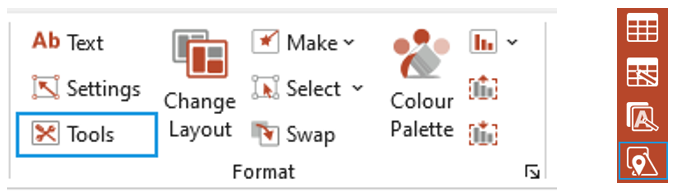
Open the Shape Tools panel (if you opened the pane from the side bar).
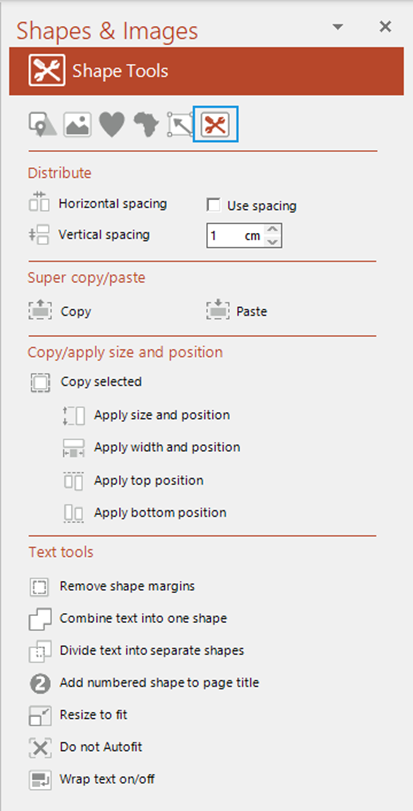
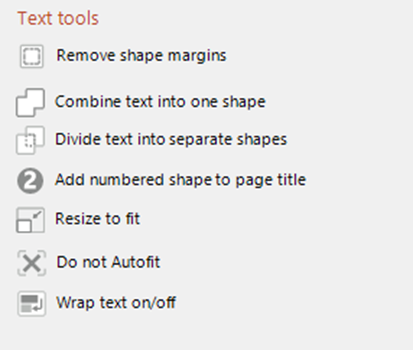
Text Tools
- Remove shape margins will remove the left, right, top and bottom margins of a shape or text placeholder.
- Combine text into one shape will combine the text of two or more shapes into one shape.
- Divide text into separate shapes will divide the text of one shape into separate shapes at each paragraph. The new shapes will be positioned beneath the existing shapes.
- Add numbered shape to page title will add a shape to the page title on the current slide in which you can type a number or letter. The page title will shift to the right accordingly. (This option will only work if it was part of your original design)
- Resize to fit will resize a shape or text placeholder to fit the content.
- Do not Autofit will stop the shape or placeholder from automatically resizing when you add text.
- Wrap text on/off will toggle between wrapping the text at the edge of the shape or not.
Was this article helpful?
That’s Great!
Thank you for your feedback
Sorry! We couldn't be helpful
Thank you for your feedback
Feedback sent
We appreciate your effort and will try to fix the article