The Shape Tools and Shape Settings panels allow you to arrange, format and position shapes on individual slides or multiple slides easily.
______
The Shape Tools panel includes functions to distribute a selection of shapes evenly or at a fixed equal gap and copy attributes from one shape to another either on the current slides or other slides. There are also some text tools for text in shapes and placeholders.
Select Tools on the ribbon OR open the Shapes & Images task pane from the side bar.
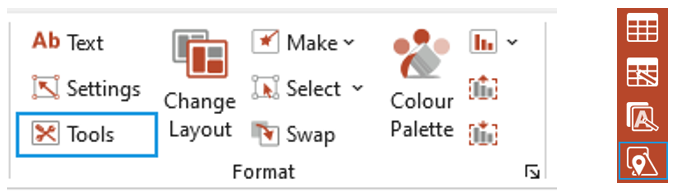
Open the Shape Tools panel (if you opened the pane from the side bar).
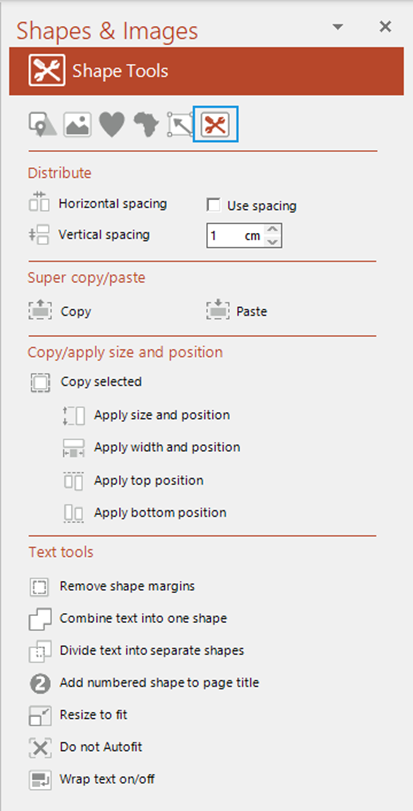
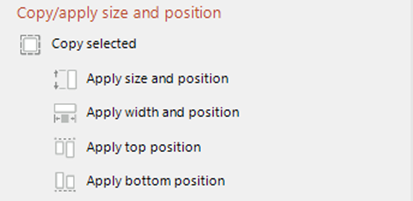
Copy/Apply Size and Position
This function copies the size and position of a shape on one slide to a shape on either the same slide or another slide. This is useful if you need to make sure that similar objects are in the same position on every slide. The function will work on any type of shape including tables and images.
- Select the shape whose size and position you wish to copy and select Copy selected.
- Go the slide containing the shape to which you wish to apply the size and position.
- Select one of the options
- Apply size and position will apply the same height, width and position of the copied shape.
- Apply width and position will apply the same width and position of the copied shape.
- Apply top position will apply the same top position of the copied shape (this is the position from the top left corner of the slide).
- Apply bottom position will apply the same bottom position of the copied shape (this is the position from the bottom left corner of the slide).
Was this article helpful?
That’s Great!
Thank you for your feedback
Sorry! We couldn't be helpful
Thank you for your feedback
Feedback sent
We appreciate your effort and will try to fix the article