The Shape Tools and Shape Settings panels allow you to arrange, format and position shapes on individual slides or multiple slides easily.
______
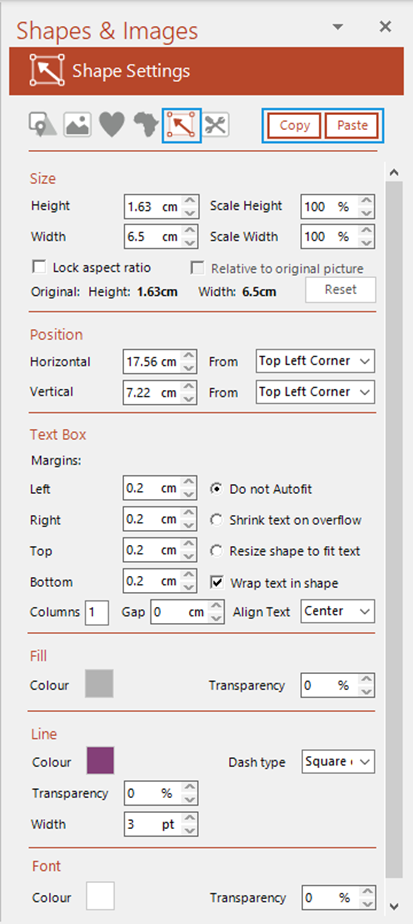
The Shape Settings panel allows you to apply settings or attributes to a shape or multiple shapes.
Select Settings on the ribbon OR open the Shapes & Images task pane from the side bar.
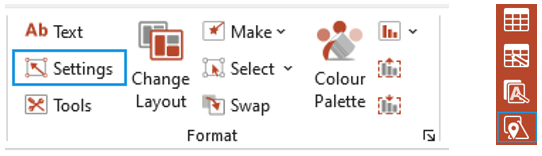
The Shapes & Images task pane opens.
- Open the Shape Settings panel (if you opened the pane from the side bar).
- Select a shape: the panel will populate with the shape’s current settings.
- Replace any of the settings with new settings and the settings will be applied to the selected shape automatically.
- Copy the settings from one shape to another by selecting the shape whose settings you wish to copy and selecting Copy and then selecting the shape or shapes whose settings you wish to change and select Paste.
Was this article helpful?
That’s Great!
Thank you for your feedback
Sorry! We couldn't be helpful
Thank you for your feedback
Feedback sent
We appreciate your effort and will try to fix the article