Recommended OneDrive setting for linking to SharePoint with Create
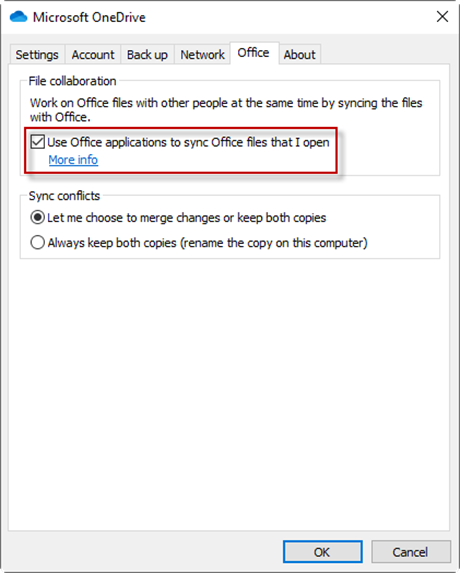
We recommend that you check the Use Office applications to sync Office files that I open setting in OneDrive. With this setting enabled a SharePoint file will always be opened with a path to the SharePoint site, not the local path to the file synced to the user’s pc.
When you send a chart or table from a file opened in this way then Create will use the SharePoint path for linking. As this web link is common to all users, any user can update the links to Excel from PowerPoint or Word even if they did not send the chart or table originally.
Format of a link to SharePoint
https://[SiteName].sharepoint.com/[LibraryName]/[folders…]/[FileName].
How do I open files when working with this recommended method?
You can open a file from a local folder on your pc which is synced to SharePoint using OneDrive by any of the following methods:
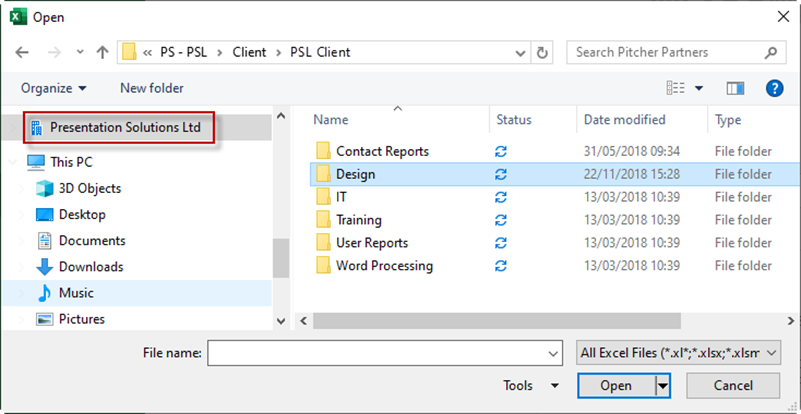
- Double-click a locally stored file that is synced to OneDrive in File Explorer. A building icon (
 ) is displayed next to the shortcut to the synchronised OneDrive folder for the SharePoint site.
 - Browse to a locally stored file that is synced to OneDrive from the Open pane in Excel. The screenshot below shows browsing to folders synced with OneDrive to the PSL SharePoint site.
Notes on SharePoint security
Create cannot directly access files in a secured SharePoint library but it can instruct Office to open and save those files. So, if Office can access the file, Create can access it.
Therefore, for updating linked objects to work the following conditions must be true:
- The SharePoint library must be set up in Office as a connected service (in this case it will display as an available Site in the Open dialog).
- The user must be signed in to Office.
- Create will not be able to access linked objects if your security settings enforce two stage authentication every time you access the site.
Alternative methods of working with SharePoint
If you do not choose to use our recommended OneDrive setting then you can still work with files on SharePoint using on the following methods.
Opening files directly from SharePoint without using OneDrive
You can open an Excel file directly from a SharePoint site by any of the methods listed below. When you send a chart or table from a file opened in this way then Create will use the SharePoint path for linking. As this web link is common to all users, any user can update the links to Excel from PowerPoint or Word even if they did not send the chart or table originally.
- Open the SharePoint site in a web browser, right-click on a file and choose Open in app.
- Right-click on a file displayed in Teams (stored on SharePoint) and choose to Open in Desktop App.
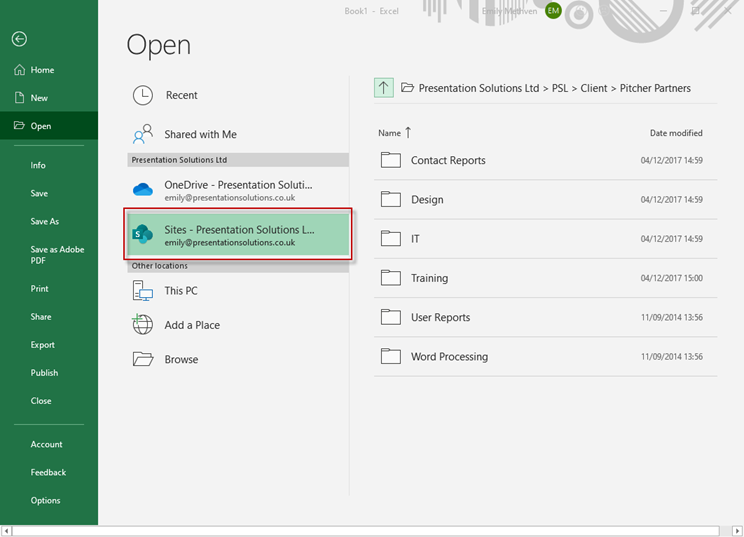
- Navigate to a file from a SharePoint site displayed on the Open pane in Excel. The following screenshot shows browsing to folders on the PSL SharePoint site.
Format of a direct link to SharePoint
https://[SiteName].sharepoint.com/[LibraryName]/[folders…]/[FileName].
Links to files opened from SharePoint with OneDrive when you have chosen not to allow Office to sync the file
When you use Create to send a chart or table to PowerPoint from a file that you have opened from a local folder that is synced to SharePoint and you haveUse Office applications to sync Office files that I open unchecked in your OneDrive settings, then the link stored in the Linked Objects dialog will be to the local folder on the users pc. By default OneDrive uses a folder on the users local profile although you can choose another location on the local pc (for example on a secondary disk).
The user who originally sent the chart or table to PowerPoint will be able to update the object. The link will be pointing to the location of the synced local file on their pc.
If another user wishes to update the links there are two options available:
- The user who sent the charts and tables to PowerPoint can use Create to Package the file and share the package with their colleague. The second user can then unpack onto their pc and the links will be updated to a location that they can access.
- Any user can open the PowerPoint file and use the Change Source File or Change Source Folder functions in Create to update the links to a location that they can access.
Format of a link to the default OneDrive folder location when Office is not syncing the file
C:\users\[UserName]\OneDrive\[LibraryName]\[folders…]\[FileName].
Was this article helpful?
That’s Great!
Thank you for your feedback
Sorry! We couldn't be helpful
Thank you for your feedback
Feedback sent
We appreciate your effort and will try to fix the article