When Create adds content to a presentation such as agendas or other layout slides it uses the placeholder on the main template master to define the margins which contain the working area. This placeholder exists by default in a PowerPoint presentation and you should ensure that it is positioned correctly to ensure that content inserted by Create matches your template.
Where do I find the body master placeholder?
- Open your PowerPoint presentation.
- Select View > Slide Master from the PowerPoint ribbon.

- Scroll the left hand pane until you can see the large thumbnail at the top of the tree. This is the main template master.
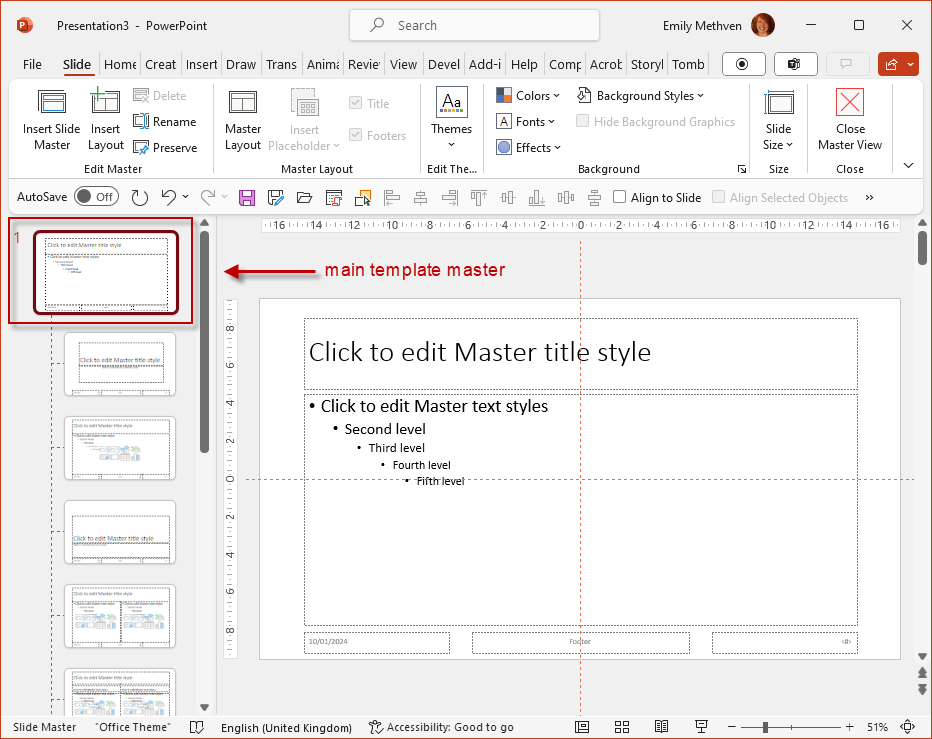
- With the main template master thumbnail selected you will see the main master displayed on the right. By default the main master will include a title placeholder and a body placeholder. (If the body placeholder is not visible follow the instructions below to add it.)
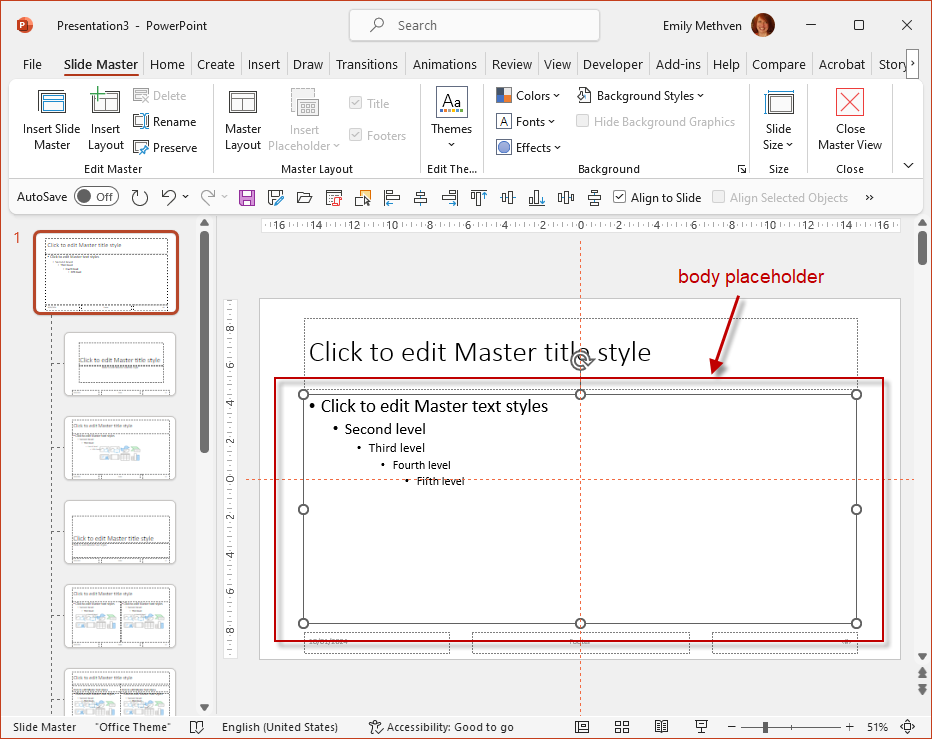
- You can drag the circular fill handles on the left, right, top, bottom and corners of the placeholder to position it on the master. Once you have done this any layouts that you subsequently insert with Create will be generated within this working area.
How do I add the body master placeholder if it is missing from the master?
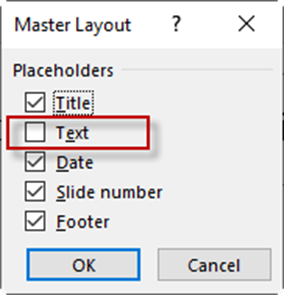
- Whilst in Slide Master view select Master Layout from the ribbon.

- The Master Layout dialog will be displayed with the Text option unchecked. Check Text and click OK. The body placeholder will then be displayed on the master slide.
How do I return to Normal view from Slide Master view?
- Select View > Normal from the PowerPoint ribbon; or

- Select Slide Master > Close Master View from the PowerPoint ribbon; or

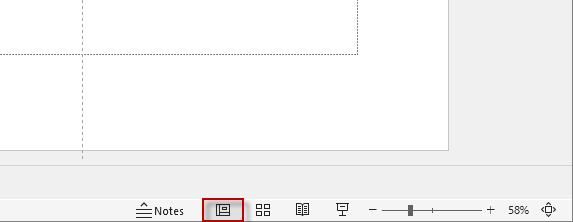
- Click the Normal button towards the right-hand end of the status bar. Holding down Shift and clicking this Normal button is a shortcut to return you to Slide Master view.
Was this article helpful?
That’s Great!
Thank you for your feedback
Sorry! We couldn't be helpful
Thank you for your feedback
Feedback sent
We appreciate your effort and will try to fix the article