Use Create to add shapes, images, icons and maps to your presentation. Any built-in content you insert from the Shapes & Images task pane will be formatted according to your company’s branding.
The content on the Shapes & Images task pane will be available in all templates in which you are working and will have been either built in to the Create software or uploaded by designated authors within your organisation.
______
This function will insert an image into a shape or placeholder and crop and size it accordingly to fill the placeholder. The functionality works the same as native picture placeholders. You can insert from a file and browse to its location, from the clipboard or from a selection that have been uploaded to Create as part of your customisation.
Images can be stored in folders and can be built-in to the Create software or uploaded by authors.
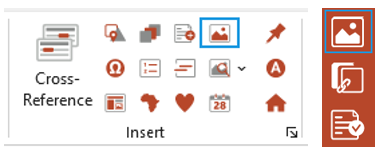
To insert an image from Create, select Images on the ribbon to view all your approved images.
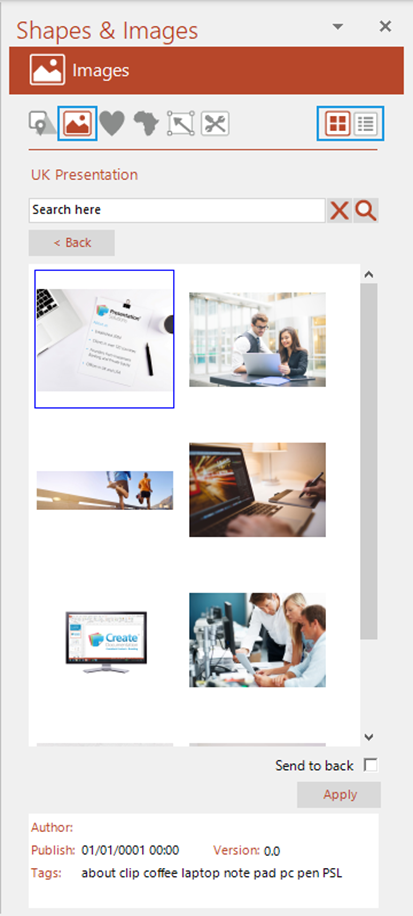
The Shapes & Images task pane opens at the Images panel.
- You can change views by clicking the list or thumbnail icons on the top right.
- In list view, select Expand all, to see all images, or click the + to expand a single folder.
- The images may be filed in folders. Click on a folder to view its contents.
- You can search for a particular image or key word tag by typing the name and selecting the magnifying icon.
- Check Send to back to insert the image behind all other elements on the slide. Note though, that if any slide elements are in the Slide Master the image will not be placed behind those.
- Double-click on the image to insert it or select it and click Apply.
- For more information, see Article: Uploading Images.
Was this article helpful?
That’s Great!
Thank you for your feedback
Sorry! We couldn't be helpful
Thank you for your feedback
Feedback sent
We appreciate your effort and will try to fix the article