A customisation or software update will be issued as a ZIP file which has the same structure as the initial release but with a new Create.vsto file and a new version folder within the Application Files folder. The steps to install this update into the Deployment folder are
- Click the link you have received to download the new files, e.g. www.presentationsolutions.co.uk/downloads/client_name/update_name.zip
- Copy both the files that are in the unzipped folder

- Go to the location of the current installation and select the folder (below the example shows a location of F:\Create deployment).
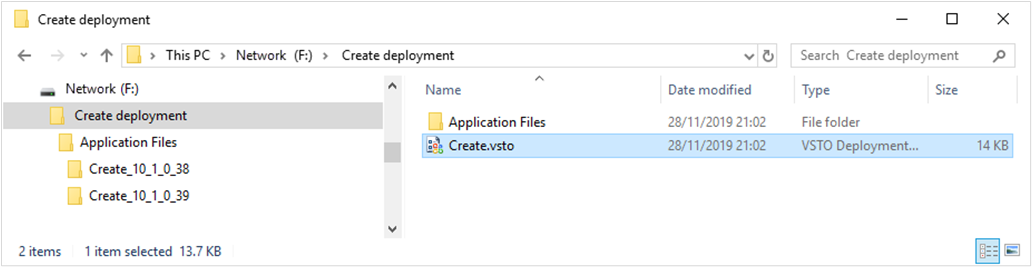
- Paste into the existing deployment folder location…
- The Create.vsto will replace the earlier version and
- The new version folder will sit alongside the earlier version (the example above shows the new Create Version 10.1.0.39)
- Inform the users that an update is available and to select Check for Updates on the Help menu on the Create tab.
Example 2: The example below shows a client who has had 3 software updates. Any new users will automatically get the latest version. Users who have installed an earlier version will get the latest version available when they select Check for Updates (e.g. 10.0.0.110).
Create Deployment
Application Files
Create_10_0_0_90
Create_10_0_0_97
Create_10_0_0_110
Using a Package
Installation can be run via a simple registry key which points to the Create.vsto file, for instance, under RunOnce, or group policy. You can create a silent installation using the office VSTOInstaller.exe which comes installed with Office. Use the /silent switch on the command line.
This link gives further information: http://msdn.microsoft.com/en-us/library/bb772078.aspx
If you wish to use a package, please contact support@presentationsolutions.co.uk and they will prepare the files you require.
| Please note: The Authenticode certificate we will send you is valid until 26th January 2026 and the same file can be used for all users. The certificate is only required for installation so once Create has been successfully installed it will continue to work even after the certificate expiry date. |
Was this article helpful?
That’s Great!
Thank you for your feedback
Sorry! We couldn't be helpful
Thank you for your feedback
Feedback sent
We appreciate your effort and will try to fix the article