Introduction
Local deployment allows user installation to be done from a network location at the client site instead of from the Presentation Solutions website. This allows greater control of updates and avoids some potential security issues that can arise when using ClickOnce. The network location could be a folder or company intranet site. Any software or customisation updates will also look to this install location.
The ClickOnce deployment files are released to the client as a ZIP file. The files are copied into a network folder (the Deployment Folder) that can be accessed by all users who will install Create V10.
The pre-requisites Microsoft .NET Framework 4.6.2 (for Create 10.0–10.4) or Microsoft .NET Framework 4.6.2 (for Create 10.5 onwards) and Microsoft Visual Studio 2010 Tools for Office Runtime (VSTO 4.0) must be installed on the user’s PC before installing Create V10 from the deployment folder.
If you wish to deploy locally, please contact support@presentationsolutions.co.uk and they will prepare the files you require.
Local Deployment Files - First installation
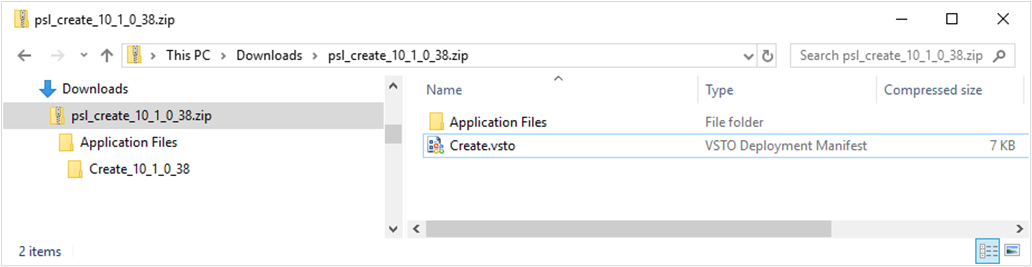
The ZIP file you will receive contains the following items:
- Create.vsto – the main deployment file to install Create V10
- Application Files – a folder containing version sub-folder
Below is a release ZIP file for Create 10.1.0.38. It shows the version folder (Create_10_1_0_38) which contains the software components and customisation.
Use the following steps to setup the Deployment Folder
- Choose a network location accessible to all users, for example:
\\Fileserver9\Software\Create Deployment\ - a network folder
http:\\CompanyWeb\Create Deployment - an intranet site - Unzip the deployment files into the deployment folder.
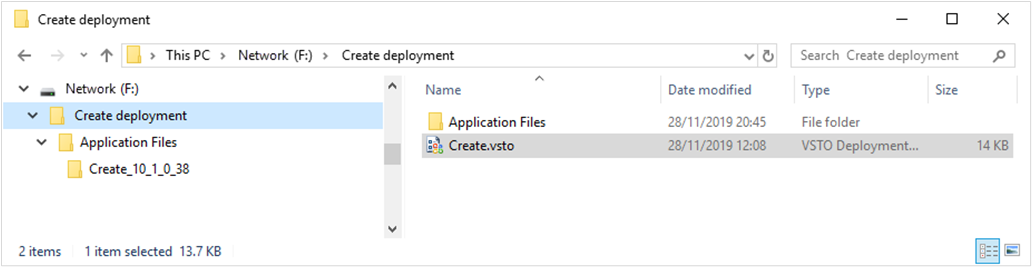
Here is the deployment folder with Create Version 10.1.0.38 in place.
IMPORTANT
The path to the deployment folder must not be changed after user installation has been completed, as the path is referenced from the User Profile. If a change has to be made, then Create V10 must be un-installed for all users and then re-installed using the new deployment location.
When using a network folder for deployment it is best practice to use drive mapping - using a fixed drive letter. The drive mapping can then be made to a new deployment folder path so that existing Create installations are not be affected. For example:
Map drive I: to \\Fileserver9\Software,
What happens if the name changes?
If, for example, the server name is changed from Fileserver9 to Fileserver17, the mapping for drive I: is changed to \\Fileserver17\Software
Existing Create V10 installations can still access the deployment folder on I:\Create Deployment and so are unaffected by the server name change.
Installing on User’s PC
- Install the pre-requisites (.NET first and then VSTO 4.0) – see Section 2 System Requirements
- Send a link to the Create.vsto in the Deployment Folder to each user. When it is opened Create will be installed.
e.g.
http:\\CompanyWeb\Create Deployment\Create.vsto - for Intranet
I:\Create Deployment\Create.vsto - for network folder
- Where the deployment folder is a network folder, users can also install Create by navigating to the file in Windows Explorer and double-clicking it.
Was this article helpful?
That’s Great!
Thank you for your feedback
Sorry! We couldn't be helpful
Thank you for your feedback
Feedback sent
We appreciate your effort and will try to fix the article