
Software Prerequisites
This software is designed to work on PCs or Laptops with Microsoft Office 2010, 2013 and 2016.
Compare Documentation® will check for installed prerequisites and you will be prompted to download and install any that are not present on the machine – in the correct sequence.
Operating system
Compare Documentation® is supported on both 32-bit and 64-bit client applications and will run with the following operating systems:
- Windows Vista
- Windows 7, 8, 10
- 2008 Server
- 2008 R2 Server
Pre-requisites
- Microsoft .Net 4.6.1
- Language Packs Required if the Office version is English and the regional settings for Windows (XP) are for another language – then a Multilingual User Interface Pack (MUI) has to be installed for that language.
Internet Access (for software/updates)
For the initial installation of Compare Documentation®, you will need an internet connection to download and register the product.
Compare Documentation® will automatically check for Updates every 14 days. You will need to connect to the internet periodically to validate the license and download updates to the software, help guides and customisations.
- For Software and Updates: https://download.presentationsolutions.co.uk/products/compare/1d16fe9a-d7be-48ab-9e6a-f505ab19e5fc/release/compare_setup.exe
- For licensing, Compare Documentation® needs to be able to access this web service: https://webservices.presentationsolutions.co.uk/licensing/LicenceValidation2.svc
Installation process
Before you begin, please ensure the following:
- PowerPoint is closed
- You have an internet connection
- If you are unable to install software, please contact your IT helpdesk
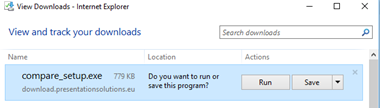
- You will receive an email with a link to the Presentation Solutions product download area. Click the click and choose Run (or Save to save the setup.exe file).
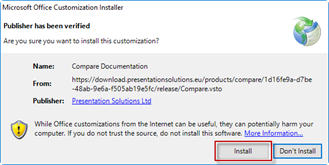
- First the Digital Certificate is checked to verify the download. Click the Install button.
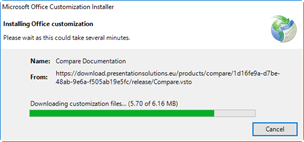
- A dialog is displayed which shows the progress of the installation.
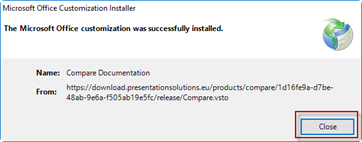
- Select Close when this has finished.
- Open PPT (or Excel) and check that the Compare tab has been added to the Office Ribbon in PowerPoint
- You are now ready to Register your version of Compare Documentation®
Registering
- Click on any command in the Compare tab to register your version. The following dialog will appear:
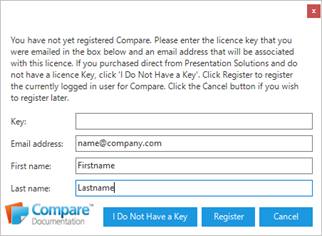
- Individuals should select the buttonI Do Not Have a Key. The following dialog will appear:
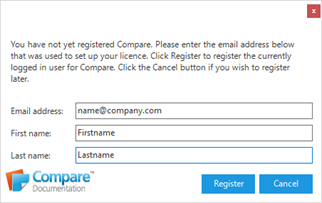
- Enter your email and name in the dialog.
- Select Register.
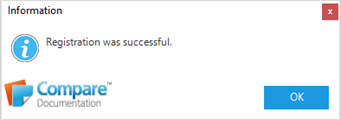
Was this article helpful?
That’s Great!
Thank you for your feedback
Sorry! We couldn't be helpful
Thank you for your feedback
Feedback sent
We appreciate your effort and will try to fix the article