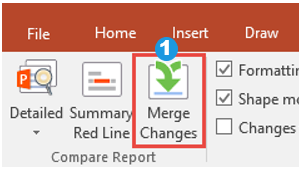
- Select Merge Changes from the Compare Report group
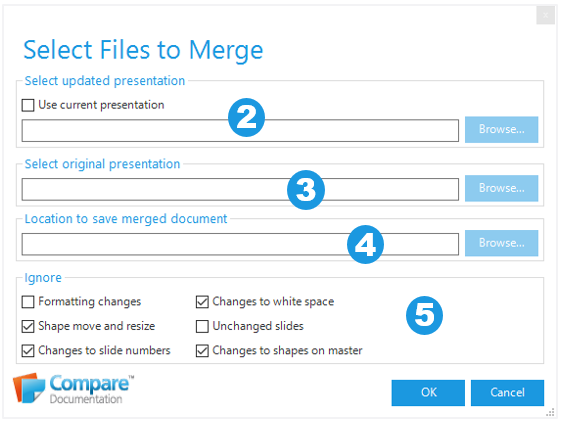
- Select updated presentation - browse to the location of the updated presentation you wish to compare or select Use current presentation.
- Select original presentation - browse to the location of the original presentation.
- Location to save merged document – once you have selected the location of the updated presentation this field will be automatically populated with the same location.
Or you can browse to a new location where you wish the Detailed Compare Report to be saved. - Under Ignore select from the following options (the options already selected will be based on your selection in the Ignore group on the Compare tab).
- Formatting changes – check this to exclude any formatting changes.
- Shape move and resize – check this to exclude any changes to the size or position of shapes.
- Changes to slide numbers – check this to exclude any changes to slide numbers (these will have occurred if slides have been deleted or inserted).
- Changes to white space – check this to exclude any changes or additions such as tabs, paragraph breaks and line breaks.
- Unchanged slides – check this to exclude any slides that have not changed.
- Changes to shapes on master – check this to exclude any changes to shapes in the master.
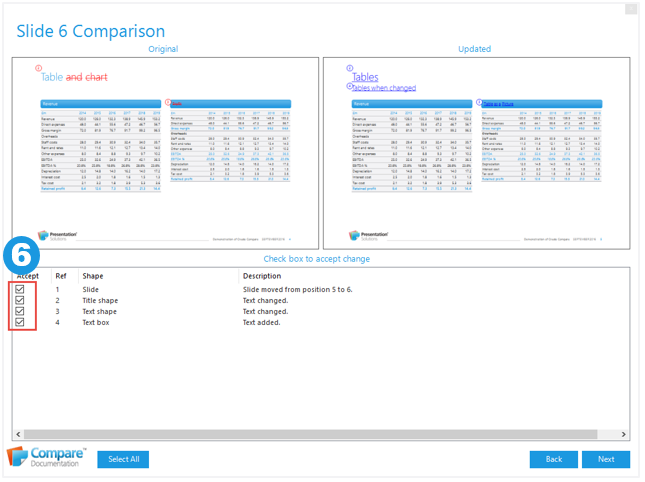
- In the Merge Report that appears, check the items you wish to include from the original into the updated on each page. Select Next to view to the next page.
Click OK to generate the Merged changes into a new PowerPoint presentation.
Was this article helpful?
That’s Great!
Thank you for your feedback
Sorry! We couldn't be helpful
Thank you for your feedback
Feedback sent
We appreciate your effort and will try to fix the article