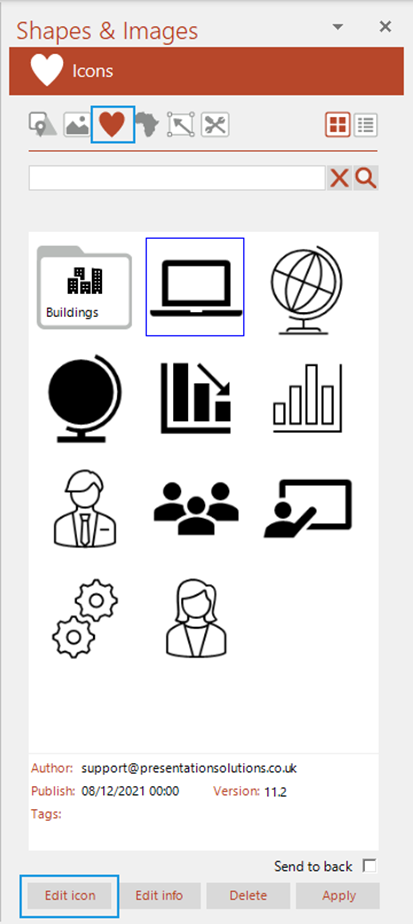
If you are an author and you wish to replace an existing author-generated icon:
- Save the new icon so that you can browse to its location.
- Open the pane at the Icons panel.
- Select the icon you wish to replace in the task pane and choose .
- Browse to the location of the new icon.
- Click .
The new icon will be uploaded and replace the old one.
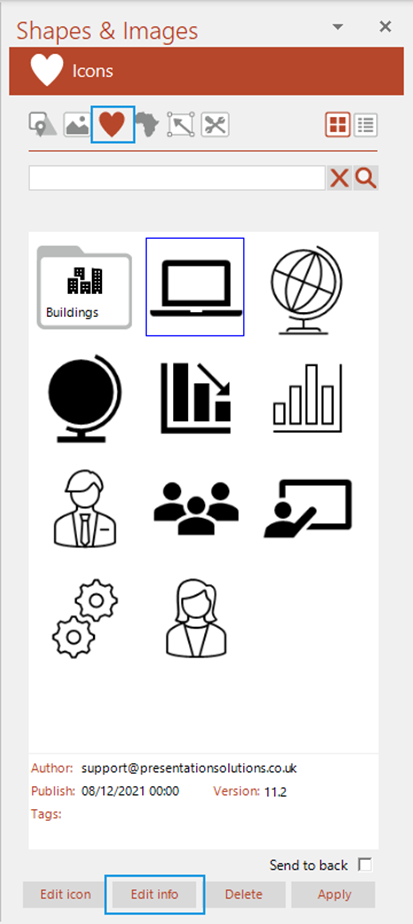
If you are an author and you wish to edit the info of an existing author-generated icon:
- Open the pane at the Icons panel
- Select the icon whose info you wish to edit and select .
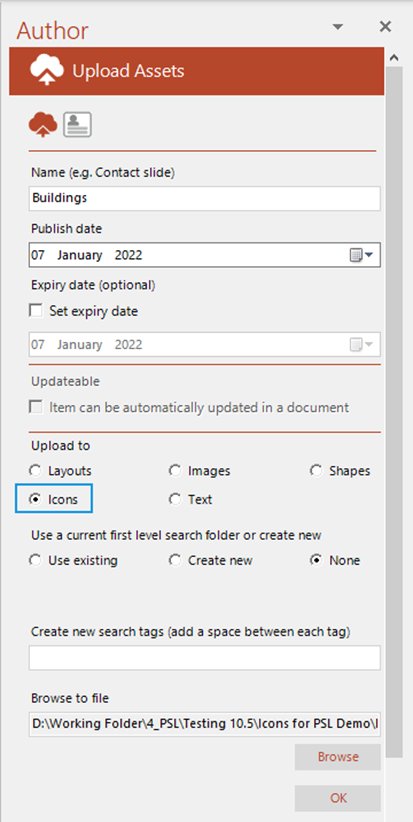
The task pane will open and the existing information for the icon will be displayed.
- Make any required changes to the information and click .
Related Topics
Was this article helpful?
That’s Great!
Thank you for your feedback
Sorry! We couldn't be helpful
Thank you for your feedback
Feedback sent
We appreciate your effort and will try to fix the article