Create can automatically generate preformatted Tables of Contents, Appendices, Figures, Tables and Exhibits. The Table of Contents (TOC) and Table of Appendices (TOA) can be configured to include various levels of headings.
The templates built into Create will already have a Table of Contents included. This can be updated using Create.
Updating the TOCs
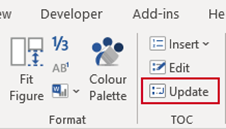
After inserting or deleting sections or appendices or making changes to headings that are included in the TOCs, select Update on the Create ribbon.
Notes |
Editing the TOC
The Table of Contents can be configured to include various levels of headings. Place your cursor in the TOC you wish to customise.
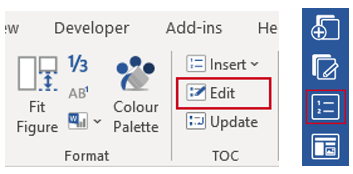
Select TOC, Edit on the Create ribbon or side bar.
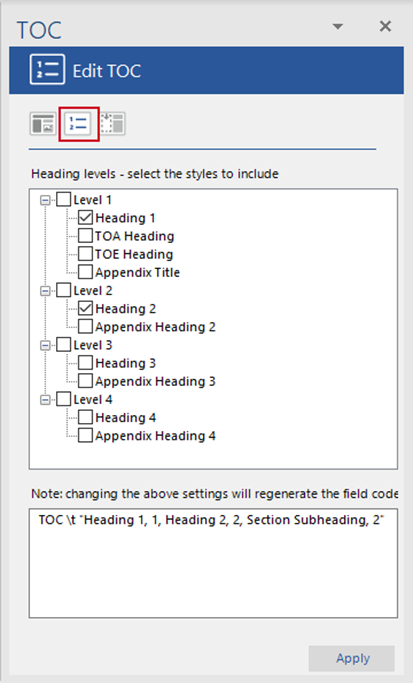
The TOC task pane will open at the Edit TOC panel.
- Up to four levels of heading can be included in the TOC. Each level is based on the Heading styles 1-4 within the document.
- Check the boxes to the left of the headings you wish to include in the TOC.
- Appendices can also be listed as part of the TOC or they can be listed in their own Table of Appendices.
- The field codes in the TOC are also displayed in the TOC dialog and can be edited by users if further customisation is required.
- Click Apply.
The TOC will be updated with the requested information.
Inserting a Table of Contents
If the document type selected has a Table of Contents, a default version will be included in the new document. There is also a function to insert a new one.
Delete any existing TOC and page heading (the function will insert a new page heading). Place your cursor where you want the new TOC to appear
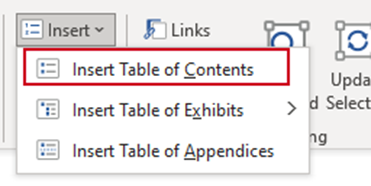
Select Insert, Table of Contents on the Create ribbon.
A new TOC will be inserted on the correct page in your document. To edit the Table of Contents to include different headings see Editing the TOC.
Was this article helpful?
That’s Great!
Thank you for your feedback
Sorry! We couldn't be helpful
Thank you for your feedback
Feedback sent
We appreciate your effort and will try to fix the article