The Insert group contains a number of preformatted objects or different page setups that you can choose to insert into your document.
______
“Figures” help to manage the dimensions and position of all objects and ensure consistency throughout your Word documents. They also contain the linking information for charts and tables created and imported from Excel using Create.
There are three types of figures available for insertion in your document: figures; tables; or equations. They can be used for items such as text, tables, charts, diagrams and pictures. However, you do not need to use different exhibit types – you can choose to insert all your tables, pictures and charts into the first type (figure).
All figures will have a sequential exhibit number (depending on the type selected), a title and optional source field. This numbering is only required if you want to cross reference the figure or have a list appear in the table of exhibit figures/tables/equations – if you do not require the numbering simply select the text and delete it.
There are various sized figures available and a further option to insert a placeholder only (with no title).
Place on a blank paragraph marker where you wish to insert a figure.
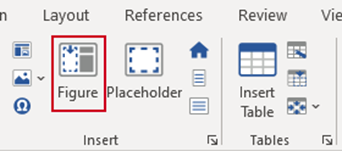
Select Figure on the Create ribbon.
The Library task pane opens at the Insert Figure panel.
- Type in the title of the figure.
- Under Caption type select the figure type; Figure, Table or Equation. Each type will be numbered sequentially throughout the document and then they can be listed in their own tables of exhibits. If you do not require a caption number, you can delete it once the exhibit has been inserted in your document.
- Select the required placeholder layout. 1 Up will insert one placeholder across the whole page. 2 Up will insert two next to each other, 3 Up will insert three next to each other. Or select Placeholder Only (which is a placeholder with no title).
- Type in the source (optional) or select from the dropdown menu.
- Click Apply.
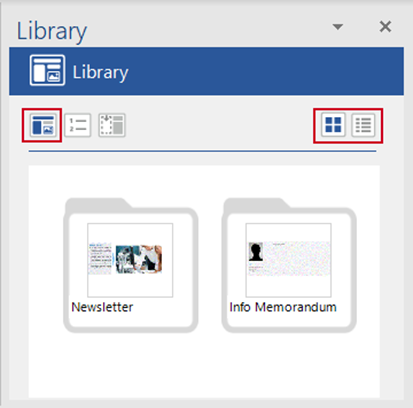
The figure(s) will be inserted with a title and a number (automatically allocated) above the placeholder, unless you select Placeholder Only. If you do not require the numbering, select the text and delete it.
Inserting a Placeholder
This will insert a placeholder (i.e. and exhibit with no title or number) exhibit without having to go through the Insert Figure task pane.
Place your cursor on a blank paragraph marker where you wish to insert the placeholder.
Select Placeholder on the Create ribbon.
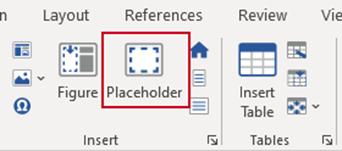
The placeholder will be inserted.
Resizing Figures
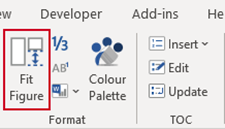
All figure placeholders have a table cell with a set height to control the size of charts and pictures. Where tables are inserted that are smaller in height than the default size (e.g. 6cm) or where you wish the height of the placeholder to be intentionally smaller, you can use Fit Figure to change the row height from a set size to automatic.
In the exhibit placeholder select the row/s of which you wish to turn off “exact row height”.
Select Fit Figure on the Create ribbon.
Was this article helpful?
That’s Great!
Thank you for your feedback
Sorry! We couldn't be helpful
Thank you for your feedback
Feedback sent
We appreciate your effort and will try to fix the article