The native Microsoft Quick Access Toolbar lets you access common commands no matter which ribbon you are on. It can be customised for Word, PowerPoint and Excel. By default, it shows the Save, Undo, and Repeat commands. You can add other commands to make it more useful for you.
You can show the Quick Access Toolbar above or below the ribbon, and you can add buttons that represent commands to the Quick Access Toolbar, including Create functions from the ribbon.
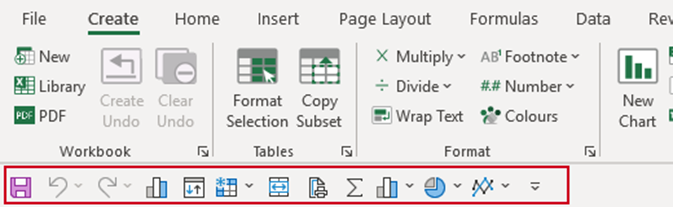
Display the QAT Below/Above the Ribbon
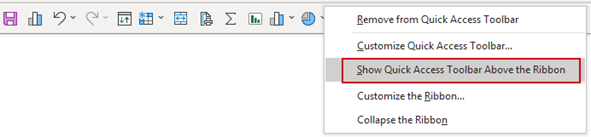
- Right-click the Quick Access Toolbar (QAT).
- Select Show Below/Above the Ribbon.
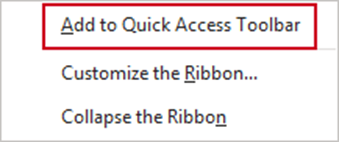
Adding a Command that is on the Ribbon
On the ribbon, click the appropriate tab or group to display the command that you want to add to the Quick Access Toolbar.
- Right-click the command, and then click Add to Quick Access Toolbar on the shortcut menu.
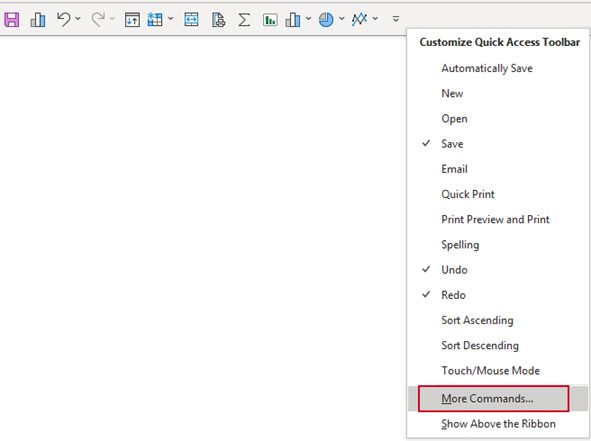
Adding a Command that is not on the Ribbon
On the Quick Access Toolbar, click the dropdown arrow on the right.
- Select More Commands.
The Excel Options dialog will open.
- Make sure All Commands is displayed under Choose commands from:
- Scroll through the list of commands, select the required command and select Add.
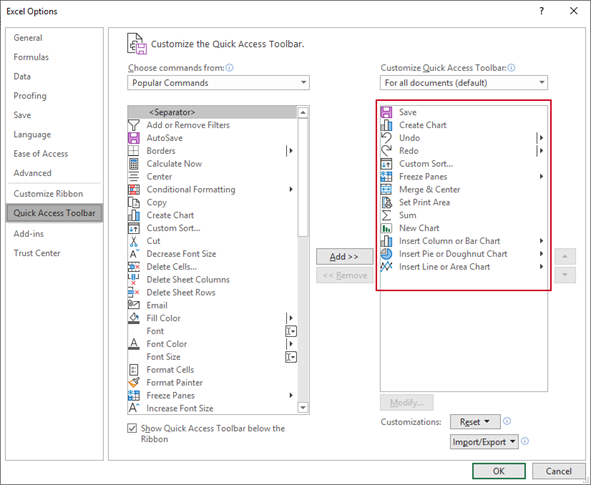
The requested command will be added to the list on the right which displays the commands currently on your Quick Access Toolbar.
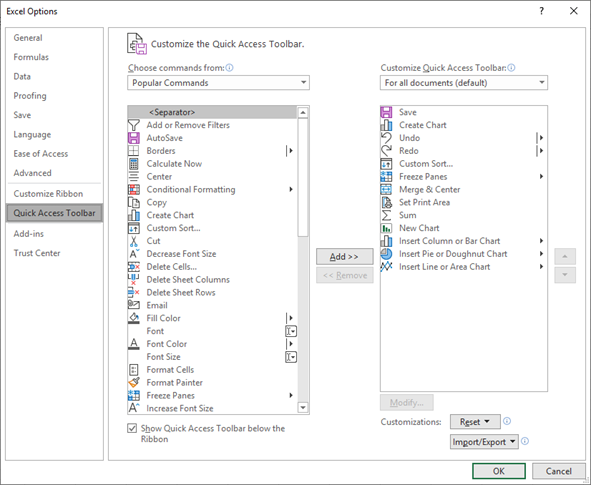
Recommended Additions to the Quick Access Toolbar in Excel
Any frequently used commands, including those from the Create ribbon, should be added to the Quick Access Toolbar for easy access.
Was this article helpful?
That’s Great!
Thank you for your feedback
Sorry! We couldn't be helpful
Thank you for your feedback
Feedback sent
We appreciate your effort and will try to fix the article