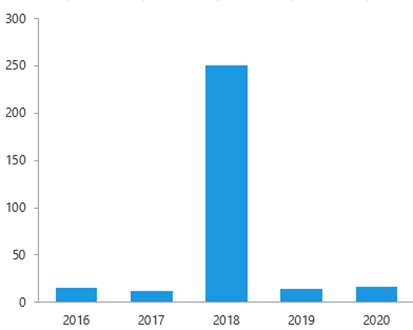
The Split Axis wizard guides users through a few simple steps to create a split in the axis, including negative data, to achieve a better representation of the data that would otherwise not be very prominent. It will also update the axis labels accordingly. Make sure you have formatted the chart before you use this function as formatting cannot be applied afterwards.
Select the chart.
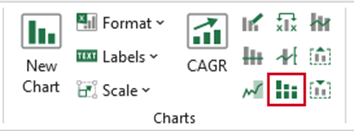
Select Split Axis on the ribbon.
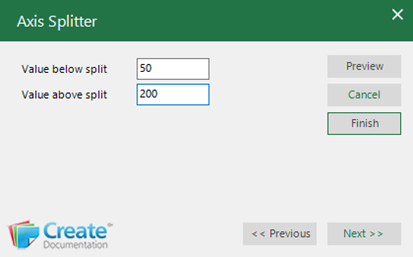
In Value below split and Value above split, type in the values to appear on the Y-axis below and above the split.
Click Next.
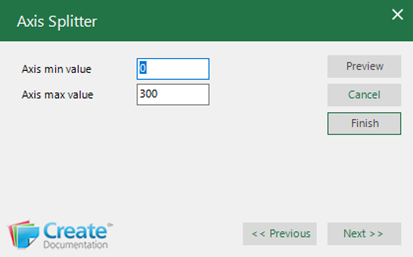
In Axis min value type in the required minimum Y-axis value.
In Axis max value type in the required maximum Y-axis value.
Click Next.
In Major unit below split type in the required major units below the split.
In Major unit above split type in the required major units above the split.
Click Next.
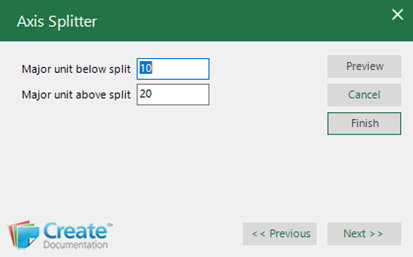
The next dialog will appear with suggested values already completed.
If you wish to change the suggested values, in Tick label below split type in the value of the tick label on the Y-axis where you wish the split to start.
In Tick label above split type in the value of the tick label on the Y-axis where you wish the split to finish.
Click Next.
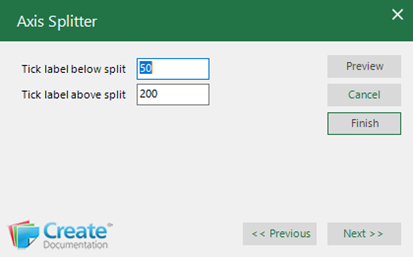
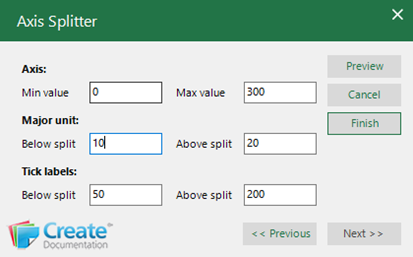
The following dialog will appear with all the values displayed.
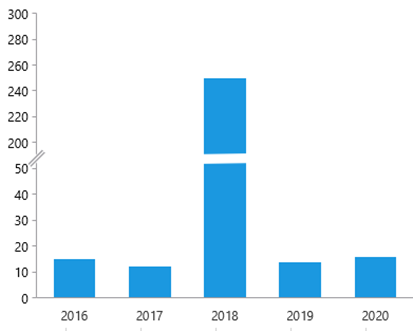
You can make any changes at this point or to check that the split is correct, you can select Preview before selecting Finish. The axis will split, and the axis labels will update accordingly.
The axis will display a split and the axis labels will update accordingly.
| Notes When using this function to create an axis split some dummy data is created on the worksheet. Do not delete or rearrange the data, as this is necessary to ensure the chart is generated correctly. |
Removing an Axis Split
You can remove an axis split that has been added using Create by using the Split Axis tool again.
Select Split Axis on the ribbon.
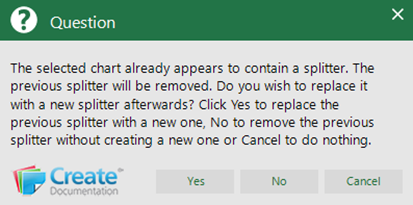
This message will appear. Click No to remove the split.
Was this article helpful?
That’s Great!
Thank you for your feedback
Sorry! We couldn't be helpful
Thank you for your feedback
Feedback sent
We appreciate your effort and will try to fix the article