Adding a Forecast Period
This function adds a shaded region to a chart to represent forecasts. This function can be applied to a chart with a date-based or value category axis.
Select the chart.
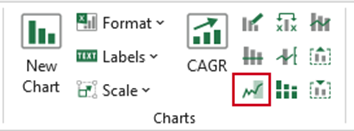
Select Forecast on the ribbon.
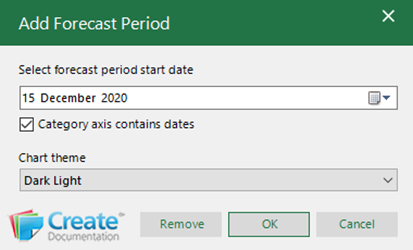
- Select the value or date from which you wish the forecast period to start.
- If the category axis contains dates, check the Category axis contains dates box. This will be checked automatically if Create recognises a true value date axis e.g. on a price volume chart.
- Click OK.
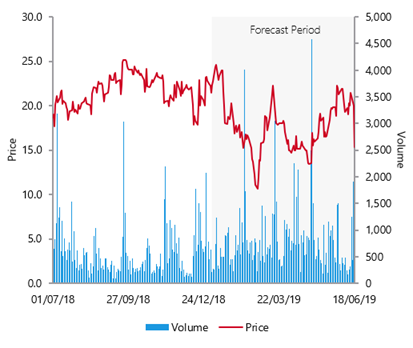
A shaded region will be added to the chart with the text Forecast Period.
Removing a Forecast Period
This function removes a forecast period that has been inserted using the Forecast function.
Select the chart containing the forecast period.
- Select Forecast on the ribbon.
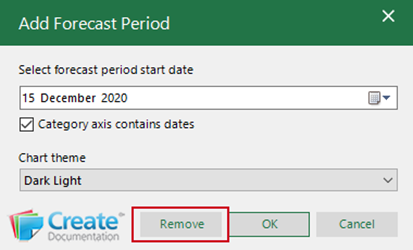
- Click Remove.
Was this article helpful?
That’s Great!
Thank you for your feedback
Sorry! We couldn't be helpful
Thank you for your feedback
Feedback sent
We appreciate your effort and will try to fix the article