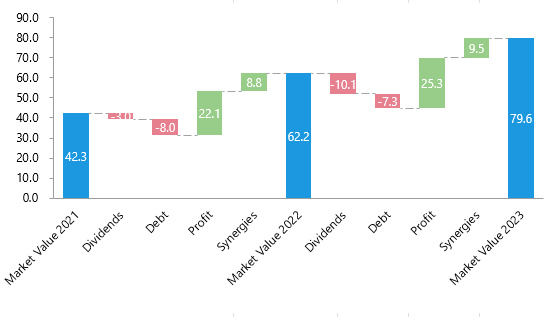
You can create a formatted waterfall chart (sometimes referred to as a bridge chart), and a stacked waterfall chart. There’s also an option to include a comparison column to either of these. Values and differentiating formats for positive and negative numbers, together with leader lines and data labels are automatic. In addition, you can adjust the data table and see the changes reflected in your chart.
Single Series Waterfall Chart
To create a waterfall chart with a single series, select the data.
- The data should be in two columns: the first containing the axis labels and the second the values.
- The values can be positive or negative.
- The first row is assumed to contain the data for the starting bar.
- Rows for interim and final totals should include appropriate labels but the cell for the value should be left blank.
- Create will calculate the totals from the other values.
Select New Chart in the ribbon or side bar.
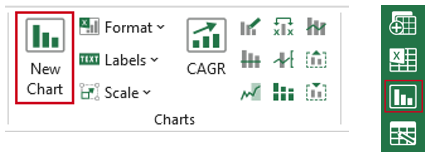
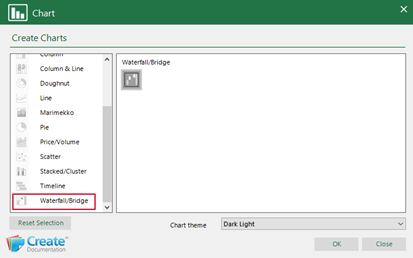
- In the Chart dialog, select Waterfall/Bridge.
- Select the required custom chart theme from the dropdown (the chart will be formatted accordingly).
- Click OK.
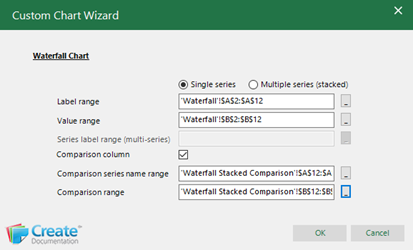
The Custom Chart Wizard will open with the fields populated based on your selection.
- Edit any of the fields by clicking on the button at the end to collapse the dialog and selecting the correct data.
- To include a comparison column, check the Comparison column box, and click the buttons at the end of the Comparison series name range and Comparison range fields to collapse the dialog and select the relevant data.
- Click OK.
The formatted chart will appear on the worksheet.
Save the workbook. Send to PowerPoint or Word using Quick Send.
Multiple Series Waterfall Chart
To create a waterfall chart with a multiple series, select the data.
- The first column should contain the axis labels and the columns for each consecutive series should contain the values.
- The values can be positive or negative.
- The first row is assumed to contain the data for the starting bar.
- The second row is assumed to contain the data for the starting bar.
- Rows for interim and final totals should include appropriate labels but the cell for the value should be left blank.
- Create will calculate the totals from the other values.
Select New Chart in the ribbon or side bar.
- In the Chart dialog, select Waterfall/Bridge.
- Select the required custom chart theme from the dropdown (the chart will be formatted accordingly).
- Click OK.
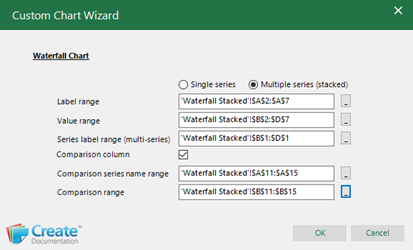
The Custom Chart Wizard will open with the fields populated based on your selection.
- Check Multiple series (stacked).
- Edit any of the fields by clicking on the button at the end to collapse the dialog and selecting the correct data.
- To include a comparison column, check the Comparison column box, and click the buttons at the end of the Comparison series name range and Comparison range fields to collapse the dialog and select the relevant data.
- Click OK.
The formatted chart will appear on the worksheet.

Save the workbook. Send to PowerPoint or Word using Quick Send.
Notes To create the Waterfall charts, Create needs to add dummy data to the worksheet. This data is inserted 100 columns to the right of the bottom extent of any existing data on the worksheet, so that it doesn’t interfere with the existing data. However, because this additional data is on your worksheet you will need to make sure that you manually set your print area so that it is not included if you print. If you delete the chart, the associated data remains. |
Was this article helpful?
That’s Great!
Thank you for your feedback
Sorry! We couldn't be helpful
Thank you for your feedback
Feedback sent
We appreciate your effort and will try to fix the article