To create a bubble chart, select the bubble chart data range for the first series (including labels, X data, Y data, Z data and titles if you have them).
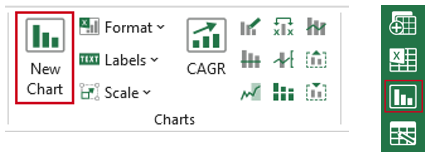
Select New Chart in the ribbon or side bar.
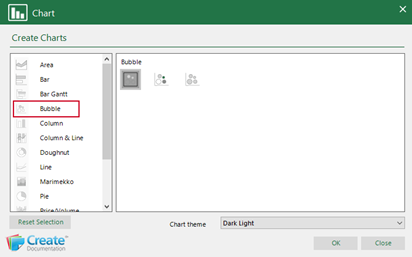
- In the Chart dialog, select Bubble and in the sub chart type list on the right select either:
- Bubble Single Series (which will apply the same colour to all values in the series); or
- Bubble Single Series Coloured (this will apply a different colour to each value in the series)
- Select the required custom chart theme from the dropdown (the chart will be formatted accordingly).
- Click OK.
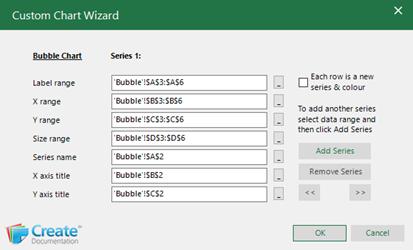
The Custom Chart Wizard will open with the fields populated based on your selection.
- Make any changes to the fields by clicking on the button at the end to collapse the dialog and selecting the correct data or for titles, typing the text in manually.
- Check Each row is a new series & colour if required (this will be checked already if you selected Bubble Single Series Coloured).
- To add a second series of data, select the data on the worksheet first and then choose Add Series.
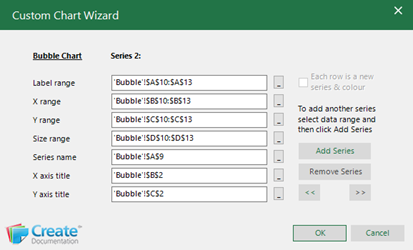
A dialog for the second series will open.
- Edit the data range for the second series by clicking on the button at the end to collapse the dialog and selecting the correct data or for titles, typing the text in manually.
- Click OK.
The formatted chart will appear on the worksheet.

Save the workbook. Send to PowerPoint or Word using Quick Send.
Was this article helpful?
That’s Great!
Thank you for your feedback
Sorry! We couldn't be helpful
Thank you for your feedback
Feedback sent
We appreciate your effort and will try to fix the article