Add a Table of Contents (TOC) to any workbook. The TOC will list all the worksheets and you can choose from a selection of options to include. Update it at any time using the Update TOC function.
- You can insert the TOC on any worksheet and you can include sequential numbering, the worksheet name and a description from a specific cell on every worksheet.
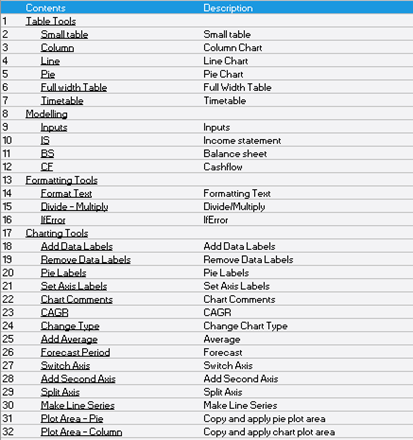
Inserting a TOC
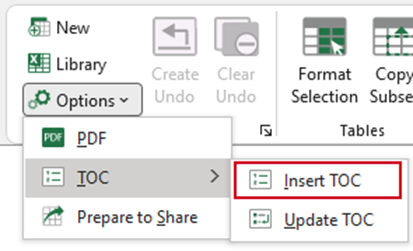
Insert a blank worksheet and rename it to e.g. TOC, or place your cursor on an existing worksheet where you wish the TOC to be inserted.
- Select Options, TOC, Insert TOC from the Create ribbon.
- If any of the cells that will be required by the TOC contain content, a warning message will appear.
- Select OK to continue – any existing content will be replaced by the TOC
OR - Cancel to close the dialog and abort the function.

The Table of Contents dialog opens.
Select OK, to insert a TOC based on the selections shown (these selections will be stored for the next time you select this function) or select new options:
- Apply Create TOC table style, if set will apply a predefined table format to the TOC if one has been set up with your customisation in Create.
- Include hidden worksheets will include any hidden worksheets in the TOC list.
- Include entry for TOC sheet name itself will include the name of the worksheet containing the TOC in the list of entries.
- Emphasise worksheet tabs that include these characters: if you have included any characters to denote e.g. sections, and you wish those worksheet names to be emphasised in the TOC, enter the characters or text here.
Check which information to include in your TOC:
- Sequential number (1,2,3…) will list a sequential number in the first column (where your cursor is). The width of the column will be reduced.
- Tab name will include every tab/worksheet name in the TOC (this is checked by default).
- Description populated from this cell in all worksheets: check this and type in the cell reference or browse to the cell in any worksheet to include the content of this same cell from every worksheet in a column in the TOC.
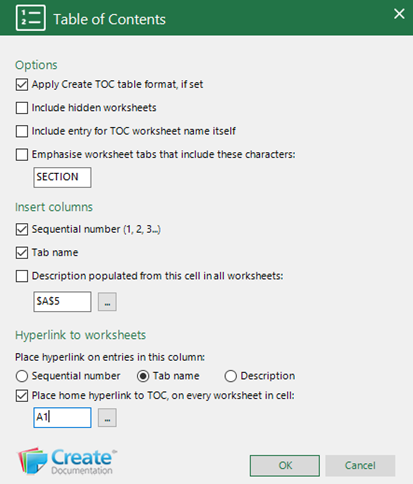
Choose on which TOC column to add hyperlinks:
- Select either Sequential number, Tab name or Description (depending on your selection above)
- Place home hyperlink to TOC, on every worksheet in cell: add a hyperlink to the TOC in the same cell on every worksheet. Type in the cell reference or browse to its location on any worksheet. If this cell is populated on any worksheet, you will be prompted to enter a different one. Make sure there is no content in this cell in any worksheet in your workbook.
Editing a TOC
You can replace an existing TOC using the Insert TOC function.
- Place your cursor in the cell where you want the TOC to be inserted.
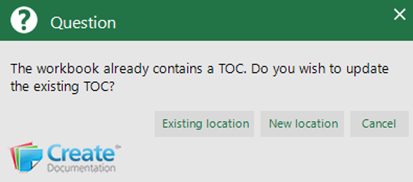
- If this is a different location to the original TOC a warning will appear.
- Select Existing location to insert the new TOC in the same location.
- Select New location to insert the new TOC where your cursor is.
- Make your selections in the Table of contents dialog.
- Click OK.
Updating a TOC
If the TOC needs updating use the Update TOC function.
From anywhere in the workbook containing the TOC.
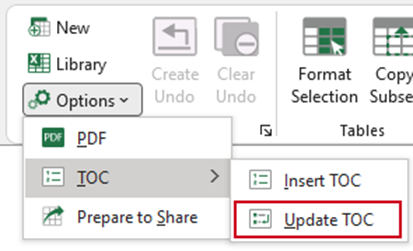
- Select Options, TOC, Update TOC from the Create ribbon.
Was this article helpful?
That’s Great!
Thank you for your feedback
Sorry! We couldn't be helpful
Thank you for your feedback
Feedback sent
We appreciate your effort and will try to fix the article