Use Create to add shapes, images, icons and maps to your presentation. Any built-in content you insert from the Shapes & Images task pane will be formatted according to your company’s branding.
The content on the Shapes & Images task pane will be available in all templates in which you are working and will have been either built in to the Create software or uploaded by designated authors within your organisation.
______
This function will insert a preformatted PowerPoint map on a slide or into a shape or placeholder.
Maps can be stored in folders and are built-in to the Create software.
To insert from Create, select Map on the ribbon or on the Shapes & Images task pane.
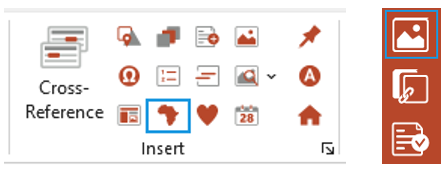
Place your cursor in a shape or placeholder where you wish to insert the map.
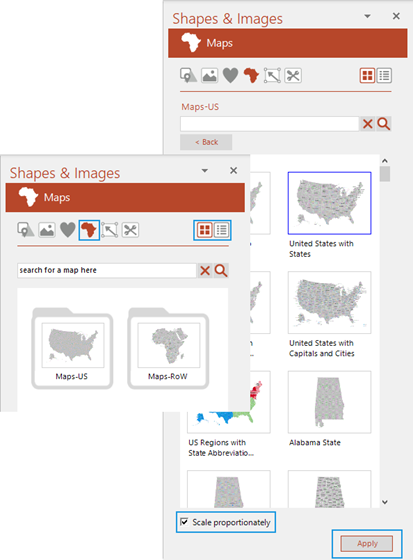
- You can change views by clicking the list or thumbnail icons on the top right.
- In list view, select Expand all, to see all maps, or click the + to expand a single folder.
- The maps are filed in folders. Click on a folder to view its contents.
Search for a particular map or key word tag by typing the name and selecting the magnifying icon.
- You can search for a particular map or key word tag by typing the name and selecting the magnifying icon.
- Double-click on the map to insert it or select it and click Apply.
- Once inserted, use the map colour palette to recolour or to apply highlight fills to particular regions.
Adding Map Markers
Use this function to insert formatted markers on a map (to indicate a city or office location etc.).
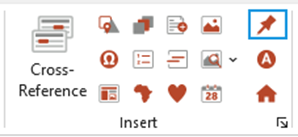
- Select Insert Map Point on the Create ribbon.
- A map point will be inserted in the top left corner of your slide. Click and drag the map point onto the map in the required position.
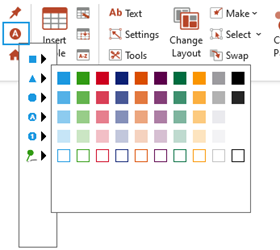
To choose a different style map marker i.e. select from the Select Map Point options.
- Select Select Map Point on the Create ribbon.
- Choose the style and colour.
Once you have a selected a preferred map point this will become the default style.
| Notes If a numbered map point is chosen (A or 1), subsequent map points which are inserted via the Insert Map Point function will contain the next letter or number i.e. B, C, D etc. or 2, 3, 4 etc |
Was this article helpful?
That’s Great!
Thank you for your feedback
Sorry! We couldn't be helpful
Thank you for your feedback
Feedback sent
We appreciate your effort and will try to fix the article