Presentations can be divided into sections and appendices. There are two types of section and appendix divider slides:
A slide displaying the section/appendix name and number (and an agenda/table of contents at the beginning of the presentation).
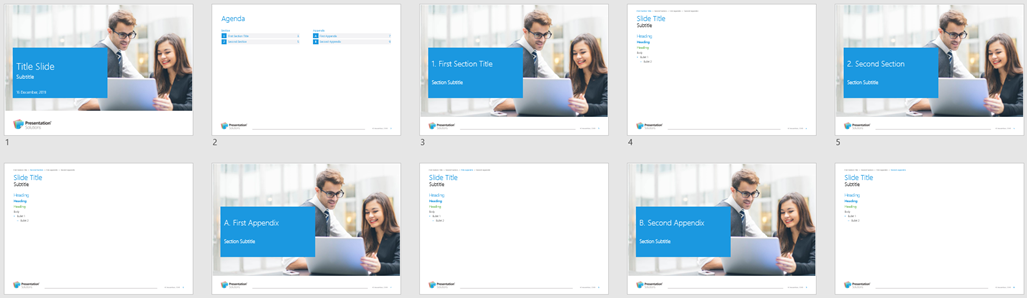
OR
“Repeated dividers” which list all the sections and appendices in the presentation with the current section/appendix highlighted (therefore no agenda/table of contents at the beginning of the presentation).
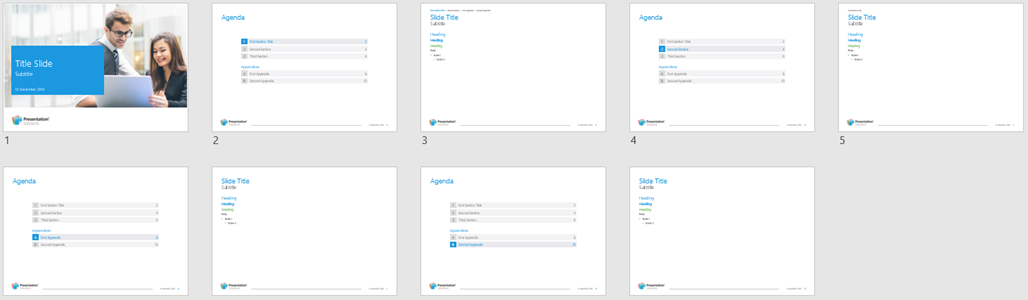
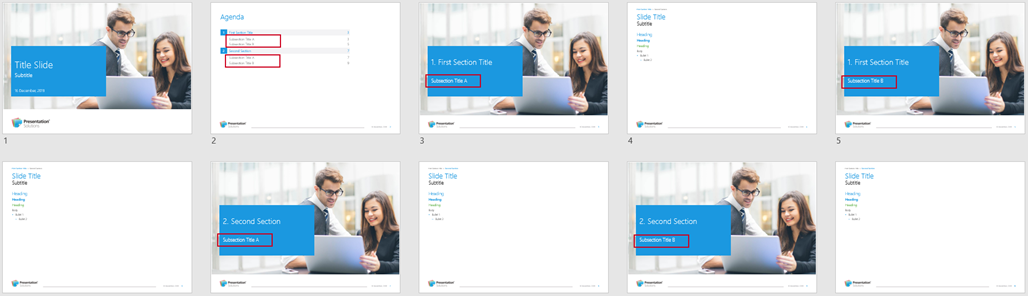
Subsection titles are optional and can be added to the section divider slides and included in the agenda/table of contents.
Repeated Dividers
This will insert a section divider slide displaying all the section and appendix titles and numbers throughout the presentation with the current section highlighted.
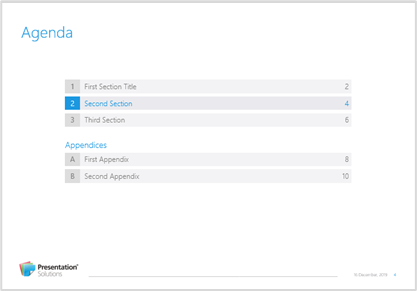
To insert repeated section or appendix dividers, select Dividers from the ribbon or from the Layouts task pane.
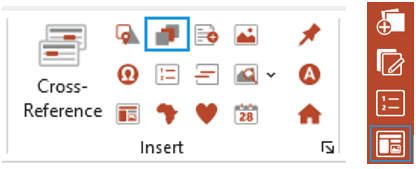
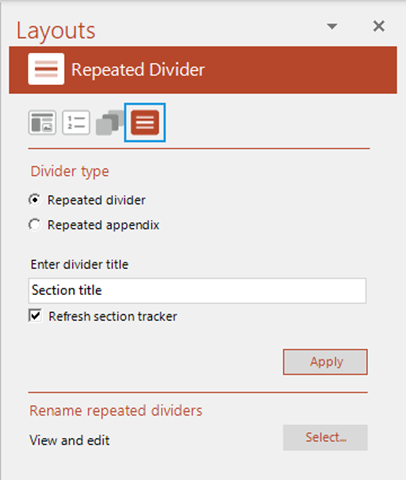
From the Repeated Dividers panel on the Layouts task pane.
- Select Repeated divider or Repeated appendix.
- Type in the section or appendix title.
- If your presentation contains Section Trackers, check Refresh section tracker to update them at the same time. See Article: Adding Section Trackers
- Click Apply.
For further repeated dividers, make sure you insert them from the task pane rather than duplicating an existing one so that Create can pick up all the information from all dividers.
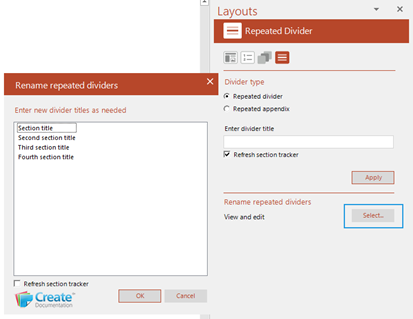
To edit a section title on repeated dividers:
- Click on Select to open a dialog containing all the existing repeated divider titles.
- Double-click to edit any of the titles.
Using this method will ensure that all the repeated agenda/toc slides are updated accordingly.
| Notes There is no option to display subsection titles on repeating agenda/toc dividers. Depending on your design there are a maximum number of sections that can be displayed in a repeating agenda/toc (to ensure that the section divider remains on a single slide). Never type directly into the repeated agenda/toc dividers. If you delete a repeated agenda/toc slide, update the remaining ones using Update, Agenda/TOC. |
Was this article helpful?
That’s Great!
Thank you for your feedback
Sorry! We couldn't be helpful
Thank you for your feedback
Feedback sent
We appreciate your effort and will try to fix the article