Presentations can be divided into sections and appendices. There are two types of section and appendix divider slides:
A slide displaying the section/appendix name and number (and an agenda/table of contents at the beginning of the presentation).
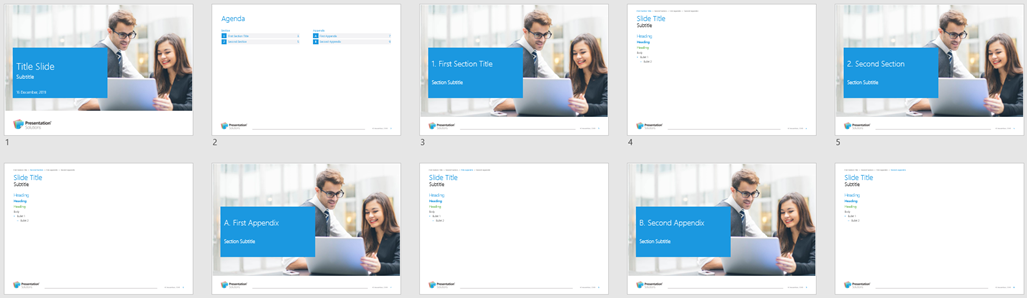
OR
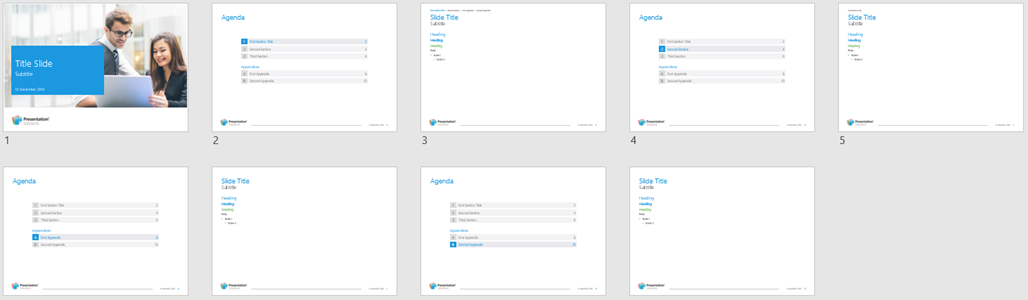
“Repeated dividers” which list all the sections and appendices in the presentation with the current section/appendix highlighted (therefore no agenda/table of contents at the beginning of the presentation).
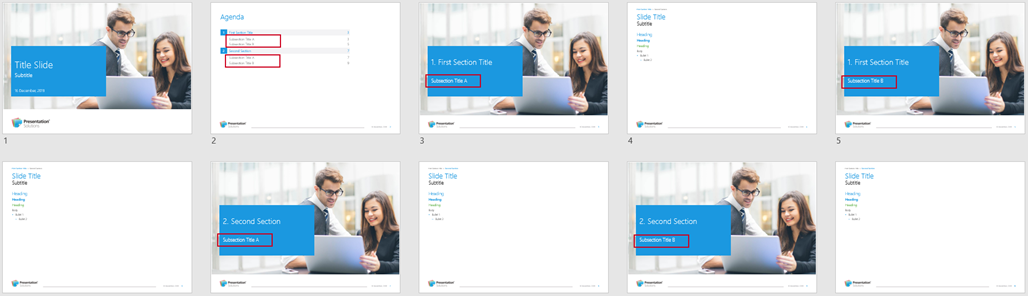
Subsection titles are optional and can be added to the section divider slides and included in the agenda/table of contents.
Changing the Divider Design
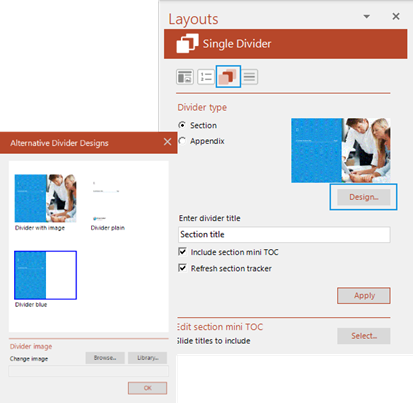
Your PowerPoint templates may allow for a choice of design for section and appendix dividers. If this is the case, you can select an alternative design in the Single Dividers panel.
If there is a choice of divider slides available for the template in which you are working, the Design option in the Single Dividers panel will be enabled (i.e. orange).
- Click on the Select button. A dialog will open from which you can choose a new divider slide.
- Choose the new divider, click OK to close the dialog.
- Click Apply to insert the new divider.
Was this article helpful?
That’s Great!
Thank you for your feedback
Sorry! We couldn't be helpful
Thank you for your feedback
Feedback sent
We appreciate your effort and will try to fix the article