Compare will name shapes when PowerPoint is saving. This is to ensure that all shapes have a unique name when a comparison is performed. If you are collaborating on a PowerPoint file with AutoSave enabled the process to name the shape can cause the AutoSave to take longer than usual if there isn’t sufficient resource available.
We suggest that any users having issues with lagging in PowerPoint follow the steps below to deactivate Compare to see if this improves performance. Where multiple users are collaborating on a document, the time taken for one user to AutoSave could impact the performance experienced by another.
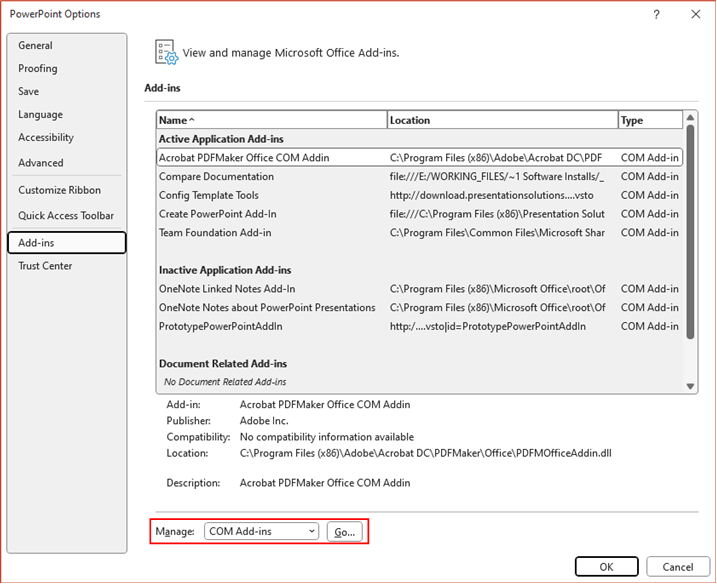
- Select File>Options>Add-ins
- In the
Manage: dropdown at the bottom of the dialog select
COM Add-ins and then click Go…
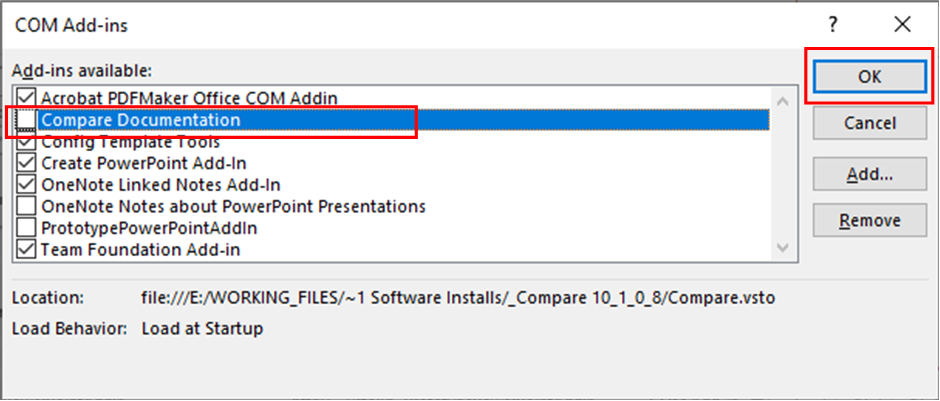
- In the
Com Add-ins dialog uncheck Compare
Documentation and click OK
Was this article helpful?
That’s Great!
Thank you for your feedback
Sorry! We couldn't be helpful
Thank you for your feedback
Feedback sent
We appreciate your effort and will try to fix the article