In a saved PowerPoint presentation, select the shape you wish to upload.
Select on the side bar.
The task pane will open at the Upload Assets panel.
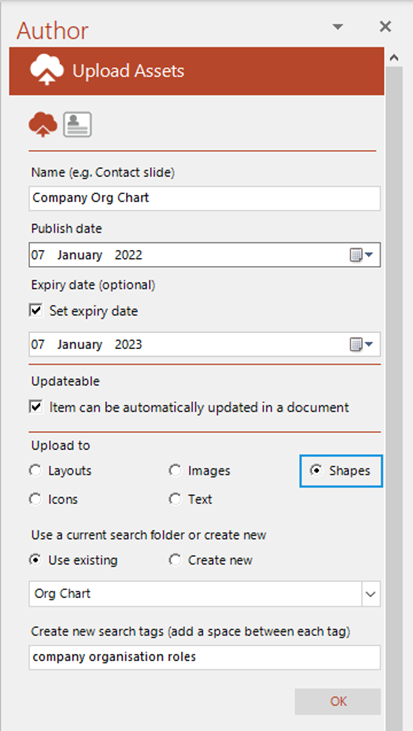
Complete the details of the new shape:
- The name that you choose will appear underneath the shape thumbnail in the task pane once the shape is uploaded.
- Defaults to the current day, month and year. To choose a future date, click on the calendar button and select date from the calendar that appears. The recorded publish date will be in the same time zone as that of the author.
- This field is optional. If you want a shape to be available for a limited period only, check Set expiry date, click on the calendar button and select the date. The recorded expiry date will be in the same time zone as that of the author.
- This field is optional. Check the box to mark a shape as updateable. When a presentation containing updateable out-of-date shapes is opened, the user will be prompted to update to the latest version.
- Select Shapes to upload to the task pane.
- Defaults to Use Existing. Select the folder in which you would like to place your shape from the drop-down list or select Create new to create a new folder to contain your shape.
- This field is optional. Add relevant searchable tags for the slide with a space between tag names.
- Click .
Related Topics
Was this article helpful?
That’s Great!
Thank you for your feedback
Sorry! We couldn't be helpful
Thank you for your feedback
Feedback sent
We appreciate your effort and will try to fix the article