The Repair Ribbon
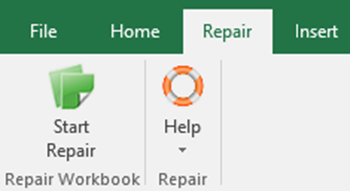
- Start Repair – clicking this button will launch the task pane to initiate the Repair tool
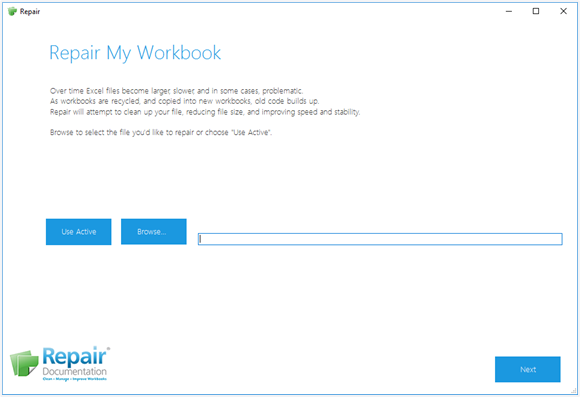
- Help
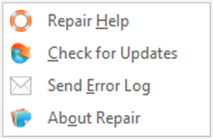
- Repair Help Launches a Quick Reference Guide. If you require any further assistance please email support@presentationsolutions.co.uk
- Check for Updates Download updates to Repair Documentation
- Send Error Log Will upload and email a confidential log of software errors to the Repair Documentation support team. Please be sure to follow up with an email to support@presentationsolutions.co.uk describing the problem you’re having, so that we can contact you for more information if needed
- About Repair Tells you which version of the software is installed
- Register… Prompt to register your version of Repair (only visible if you haven’t yet registered your version of Repair Documentation)
Repair My Workbook
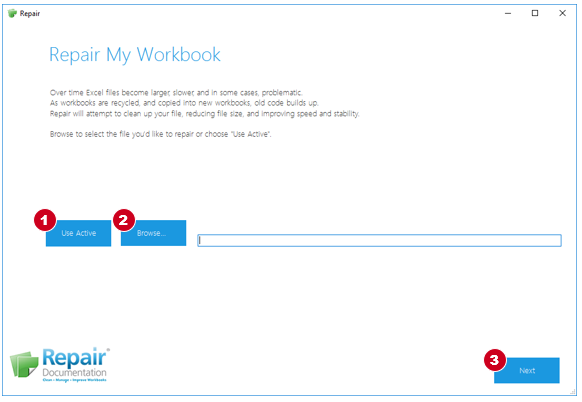
- Select Use Active to repair the active workbook; or
- Browse… to the location of the workbook you wish to repair.
- Choose Next to run a health check on the selected workbook.
Repair will scan and quickly analyse the workbook to identify objects that may need repair. The scan will also identify the number of items which will be fixed, such as:- Range names inactive, hidden or broken references
- Cell styles excess cell styles cause performance issues
- Excess worksheet areas formatting of empty rows and columns which contain no data
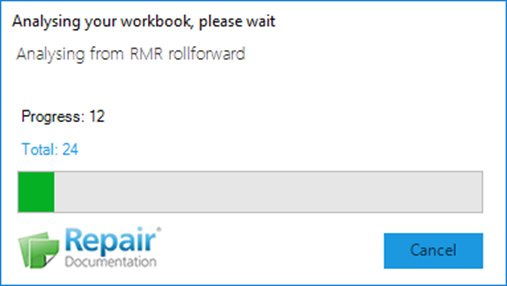
- After a few seconds, a dialog summarising the status of your document appears. Check the box next to the corresponding items you would like to be repaired – you can do this one at a time, or all at once.
- Delete Inactive Defined Range Names
Inactive, hidden or broken references e.g. #Ref - Delete Custom Cell Styles
Delete all custom cell styles from your workbook without removing any formatting applied - Remove Excess Worksheet Areas
Clear the formatting of empty rows and columns which contain no data in the entire workbook
- Delete Inactive Defined Range Names
- Note: The scan results will appear alongside a colour coded flag marker, together with a message in blue advising you of any time-consuming repairs.
Select the check boxes next to the categories you would like to be repaired, then choose Next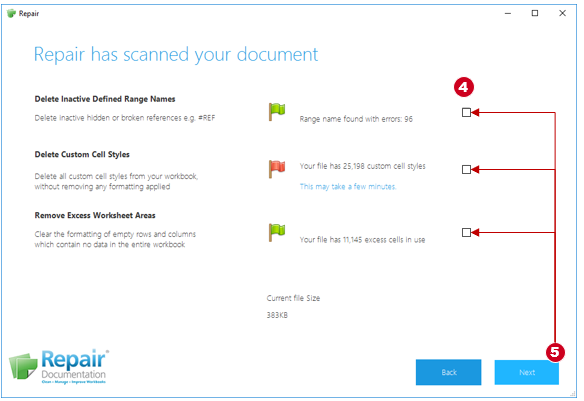
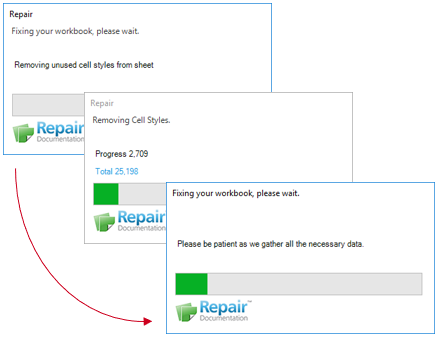
- Choose Start Repair to begin the process. A series of dialogue boxes will appear displaying the progress. When the workbook is fixed, a new copy of the file will appear in the same folder as the original file.
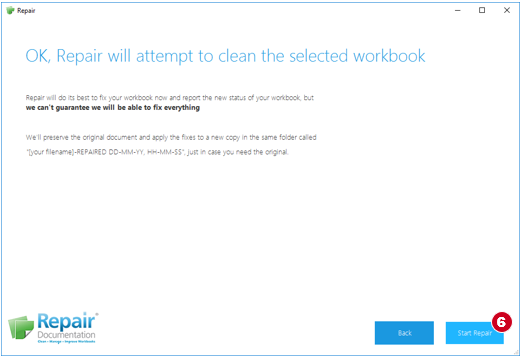
At any time, select Back to return to the previous task pane.
* If you forgot to check off any boxes before selecting the Start Repair tool, you will be prompted by a second alert with the option to repair each category by selecting Fix Now.
Repair will fix each category individually, show a dialogue box with the repair progress and display a blue check once the repair for that section is complete.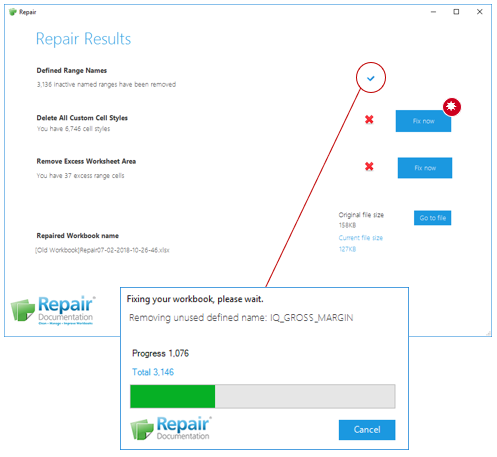
When the process is complete, the Repair Results task pane will appear with a summary of removed items, new file name and an comparison of the old and new file size. - Choose Go to file to open the folder location of the original file and the new repaired workbook. The Repair tool will close and the folder containing both the original file and repaired workbook will open.
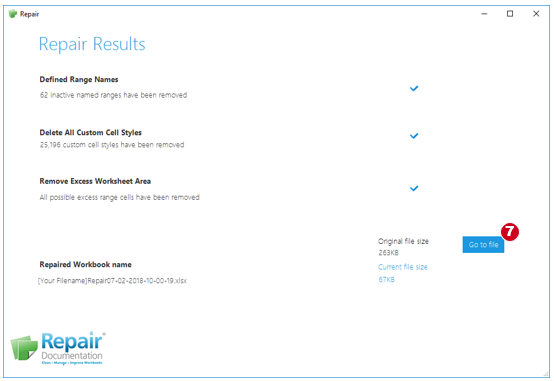
- At this point, you can close out of the original file. The repaired file will be highlighted in the folder so you can simply double-click on the file to begin work on your new workbook.

Was this article helpful?
That’s Great!
Thank you for your feedback
Sorry! We couldn't be helpful
Thank you for your feedback
Feedback sent
We appreciate your effort and will try to fix the article