Office addresses can contain a range of fields including telephone numbers and web addresses. The fields included will vary according to your company’s customisation of Create.
This will generate a workbook containing the current company information records stored in Create.
From the task pane select the Company Information panel.
Select below Office Addresses.
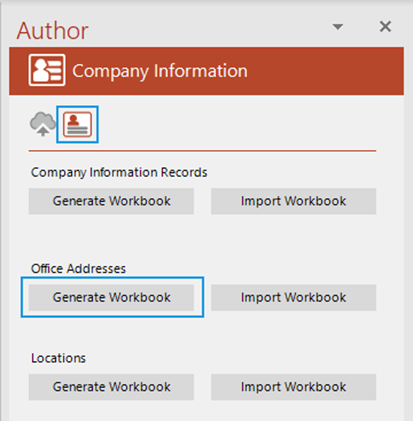
The Browse for Folder dialog will appear. Browse to the location in which you want to save the workbook.
Click .
Once the workbook has generated it will be opened in Excel.
In the generated workbook read the instructions at the top of the worksheet carefully before starting to edit.
Make your required changes to the existing fields or add a new row to add new records.
Save the workbook.
Notes
- Set up the Office Addresses as desired.
- When you are satisfied, save this workbook and import it back into Create.
- Only data in the 1st sheet will be imported.
- Rows with empty cells in the Office Address Name column will be IGNORED.
- Rows with incorrect data will cause the import to fail.
- Layouts which cannot be found in Create will cause the import to fail.
- Blank or unrecognised values in ID (PLEASE LEAVE!!) will be treated as new Office Addresses.
- WHEN IMPORTED ANY EXISTING RECORDS NOT ENTERED IN THIS SHEET BUT PRESENT IN CREATE WILL BE REMOVED FROM CREATE!
When you have finished editing the workbook, you will need to import it into Create.
From the task pane select the Company Information panel.
Select below Office Addresses.
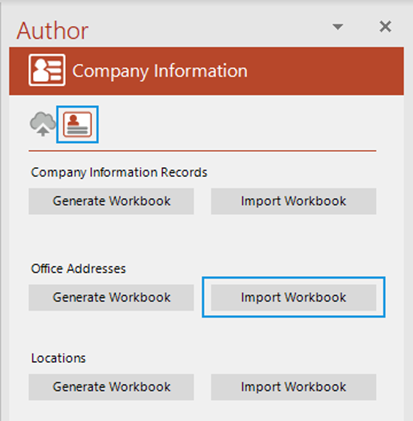
The Browse for Folder dialog will appear. Browse to the workbook that you want to upload.
Click .
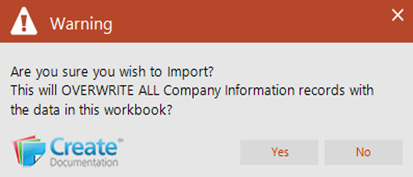
A message confirming that the new records fill will replace the previous one will appear.
Click to confirm.
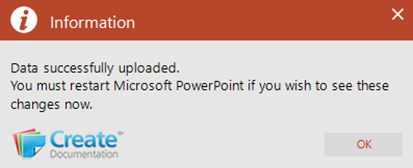
Once the update is complete this dialog will open.
Click .
Related Topics
Was this article helpful?
That’s Great!
Thank you for your feedback
Sorry! We couldn't be helpful
Thank you for your feedback
Feedback sent
We appreciate your effort and will try to fix the article